
VibeWall — OBS / Streamer Guide
Live demo in action: https://djyan.net
App: https://djyan.net/vibewall/
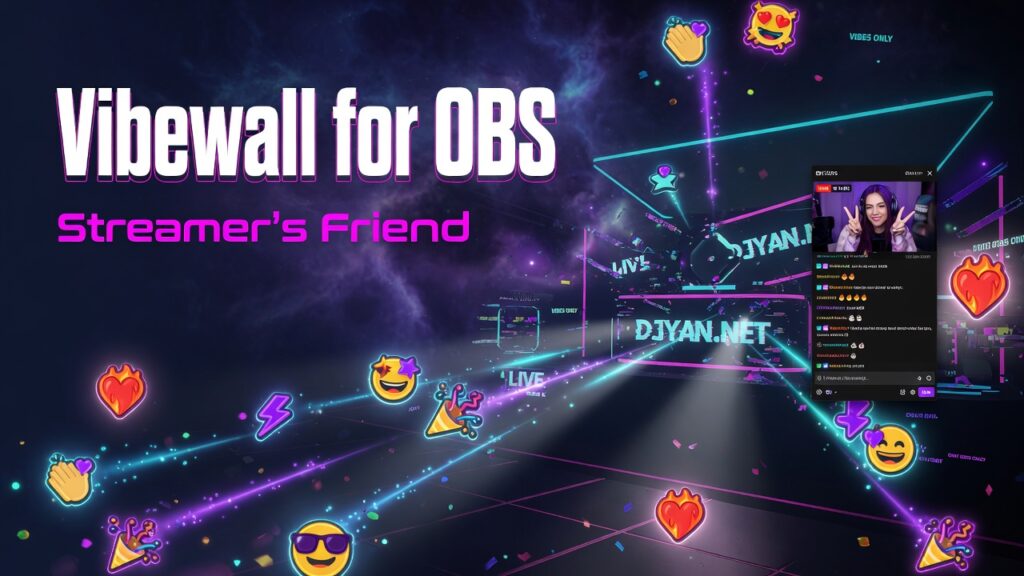
VibeWall is a live collaborative “vibe wall”: emoji reactions, particles, and optional chat, synced in real time. Streamers use it as a transparent OBS browser source so reactions float over camera, game, or VJ footage.
1. What viewers / guests need
They only need a browser link to your room:
https://djyan.net/vibewall/?room=YourRoomNamePublic lobby (default room DJYAN.NET):
https://djyan.net/vibewall/Guests can:
- Tap reaction emojis (hold for bigger vibes)
- Click the stage for sparks
- Press Space for Massive Vibe
- Use keys 1–9 and 0 for the first 10 reactions
- Chat (if chat is enabled on that URL)
- Share the same
?room=link so everyone jams in one space
Default room (no room param): DJYAN.NET
2. OBS setup (browser source)
Step A — Pick your overlay URL
| Goal: | URL: |
|---|---|
| Clean transparent overlay (recommended) | https://djyan.net/vibewall/?obs=1&room=YourRoom |
| Overlay + live chat on screen | https://djyan.net/vibewall/?obs=1&chat=1&room=YourRoom |
| Full app (not for overlay) | https://djyan.net/vibewall/?room=YourRoom |
Examples:
https://djyan.net/vibewall/?obs=1&room=FridayDrop
https://djyan.net/vibewall/?obs=1&chat=1&room=FridayDrop
Step B — Add Browser source in OBS
- Open OBS Studio.
- In Sources → + → Browser.
- Name it e.g.
VibeWall. - Set:
| Field | Suggested value |
|---|---|
| URL | e.g. https://djyan.net/vibewall/?obs=1&room=YourRoom |
| Width | 1920 (or your canvas width) |
| Height | 1080 (or your canvas height) |
| FPS | 30 or 60 |
| Custom CSS | Leave empty (page is already transparent) |
| Shutdown source when not visible | Optional (saves CPU when scene inactive) |
| Refresh browser when scene becomes active | Optional |
- Click OK.
- Place the source above camera / game / VJ so vibes appear on top.
- Resize to fill the canvas if needed.
Step C — Transparency
With ?obs=1:
- Page background is transparent
- Nebula “space” backdrop is off
- Header, reaction tray, stats, toast are hidden (effects-only)
- Stars, glitter, emojis, beams, massive vibes still render
You do not need OBS “chroma key” for the background.
3. URL parameters (full list)
Base path: https://djyan.net/vibewall/
| Parameter | Values | Effect |
|---|---|---|
room | any name (e.g. MyParty) | Join/create that room. Omit → DJYAN.NET |
obs | 1, true, yes | Transparent overlay mode for streaming |
chat | 0 / false / off | Hide chat panel |
chat | 1 / true / on | Force show chat even with obs=1 |
Common combos
# Public lobby, normal app (host browser, not OBS)
https://djyan.net/vibewall/

# Named room, full UI
https://djyan.net/vibewall/?room=Afterparty

# Stream overlay only
https://djyan.net/vibewall/?obs=1&room=Afterparty

# Stream overlay + chat sidebar
https://djyan.net/vibewall/?obs=1&chat=1&room=Afterparty

# Full UI but no chat
https://djyan.net/vibewall/?room=Afterparty&chat=0
Room name rules: letters, numbers, . _ - (spaces become -), max 40 characters.
4. Rooms — how guests join your stream room
- Choose a unique room name, e.g.
DJYanLive. - You (OBS):
https://djyan.net/vibewall/?obs=1&room=DJYanLive - Guests (phone/PC):
https://djyan.net/vibewall/?room=DJYanLive
(noobs=1— they need the full UI to react) - Everyone on the same
roomsees the same reactions and chat in real time.
Sharing the guest link
In the full app (not OBS):
- Click the 🚪 room pill → copies shareable room URL
- Shift+click or right-click room pill → join/create another room
You can also paste the guest link in Twitch/YouTube panel, Discord, QR code, etc.
5. Recommended stream layouts
A. Effects only (most common)
OBS Browser URL:
  https://djyan.net/vibewall/?obs=1&room=YourRoom

Guest link (share this):
https://djyan.net/vibewall/?room=YourRoom- Overlay: reactions only, transparent
- Guests use full app to send vibes
B. Effects + on-stream chat
OBS Browser URL:
  https://djyan.net/vibewall/?obs=1&chat=1&room=YourRoom

Guest link:
https://djyan.net/vibewall/?room=YourRoom- Chat panel appears on the right (semi-transparent)
- Stage stays transparent for vibes
C. Two browser sources (advanced)
| Source | URL | Purpose |
|---|---|---|
| VibeWall FX | https://djyan.net/vibewall/?obs=1&room=X | Full-screen particles |
| VibeWall Chat | https://djyan.net/vibewall/?obs=1&chat=1&room=X + crop in OBS | Chat only region |
Crop the second source to the chat side if you want FX and chat in different places.
6. Host controls (full app window)
Open the non-OBS URL in a browser on stream PC (or phone) so you can:
| Control | Action |
|---|---|
| Reaction tray | Tap emoji; hold for larger vibe |
| Space | Massive Vibe (big burst, rate-limited) |
| 1–9, 0 | First 10 reactions |
| Stage click | Ripples + random vibe |
| Chat | Type + Send (rate-limited) |
| Room pill | Copy / change room |
OBS does not need to capture this window if the Browser source already loads the same room with obs=1.
7. Features guests will see
- 16 reactions including smileys (🔥 ❤️ 🕺 ⚡ 🌊 🎉 ✨ 🌀 😀 😂 😍 😎 😊 🤩 😭 🤯)
- Per-emoji motion (float, bounce, flame, spiral, etc.)
- Live presence count
- Country flags on chat when IP geo works
- Rate limits against spam (chat + heavy spam of vibes)
8. Anti-spam (what to expect)
| Action | Limit (approx.) |
|---|---|
| Chat | ≥1.8s between messages; max ~5 / 15s then cooldown |
| Same chat text | Blocked for ~5s |
| Reactions | Soft throttle |
| Massive Vibe | ~10s between uses |
If limited, a toast shows: ⏳ Slow down…
9. Performance tips
- Use 30 FPS browser source if CPU is high.
- Prefer
?obs=1(no heavy UI/nebula) on stream PC. - Close unused browser tabs.
- One room + one OBS browser source is enough for most streams.
- If the wall freezes: refresh the Browser source (right-click source → Refresh).
10. Troubleshooting
| Problem | Fix |
|---|---|
| Black box instead of transparent | Use ?obs=1; don’t add opaque Custom CSS; put source above scene content |
| No reactions on stream | Guests must use the same ?room= name; check “live” on guest page |
| Wrong room | Confirm URL room= matches guest link (case-insensitive channel, display name kept) |
| Chat missing in OBS | Add chat=1 (e.g. https://djyan.net/vibewall/?obs=1&chat=1&room=…) |
| Chat shows when you don’t want it | Use ?obs=1 without chat=1, or chat=0 |
| Page not loading | Confirm https://djyan.net/vibewall/ opens in a normal browser first |
| Flags missing | Geo APIs blocked / VPN — chat still works without flags |
| Emoji is □ | Rare OS font issue; core set is chosen for wide support |
11. Quick start checklist
- [ ] Pick a room name (or use
DJYAN.NET). - [ ] Share guest link:
https://djyan.net/vibewall/?room=YourRoom(noobs). - [ ] In OBS, Browser source:
https://djyan.net/vibewall/?obs=1&room=YourRoom. - [ ] Size 1920×1080 (or your canvas), no custom CSS.
- [ ] Place source on top of scene.
- [ ] Open guest link on a phone and fire a reaction — it should appear on stream.
12. Ready-to-copy production URLs
App home:
https://djyan.net/vibewall/

Guest (named room):
https://djyan.net/vibewall/?room=LiveSet

OBS overlay:
https://djyan.net/vibewall/?obs=1&room=LiveSet

OBS + chat:
https://djyan.net/vibewall/?obs=1&chat=1&room=LiveSet
VibeWall · DJYAN.NET — transparent collaborative vibes for live streams.